User Guide
This guide walks through Trace Elements one screen at a time. If you're just getting started, read it top to bottom — each section builds on the last.
On this page
- 1. First run & choosing your element
- 2. The home screen
- 3. Reading the daily ring
- 4. Logging a meal
- 5. Searching the food database
- 6. Looking up foods that aren't listed
- 7. Managing the food database
- 8. Compound foods & custom recipes
- 9. Favorite meals
- 10. Mood & notes journal
- 11. Trends & history
- 12. Settings, limits & backup
1. First run & choosing your element
Out of the box the app tracks nickel with a daily limit of 150 µg, a common target for a low-nickel diet. You can change both at any time — see Settings. The element you choose is shown under the daily ring, and every food value in the app is interpreted as that element measured in micrograms (µg) per 100 grams of food.
You only need to set this once. If you switch elements later, the food values update to that element's reference set automatically.
2. The home screen
The home screen is your daily dashboard. From top to bottom it shows the date navigator, the daily progress ring, the meal logger, the Food Management panel, and the day's mood and notes.
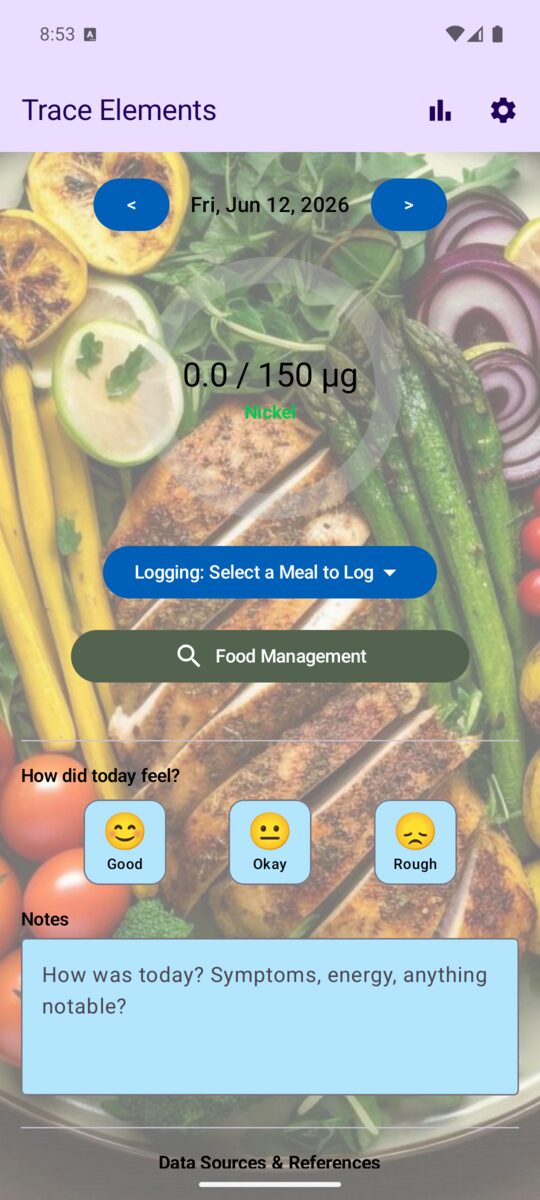
- Date navigator — use the < and > arrows to move between days, or tap the date to jump to a specific one.
- Daily ring — your running total for the day against your limit.
- Logging selector — pick which meal you are adding food to.
- Food Management — an expandable panel for searching food values, opening the full database, and managing recipes.
- How did today feel? and Notes — your personal journal for the day.
The icons in the top bar open Trends & History (the bar-chart icon) and Settings (the gear).
3. Reading the daily ring
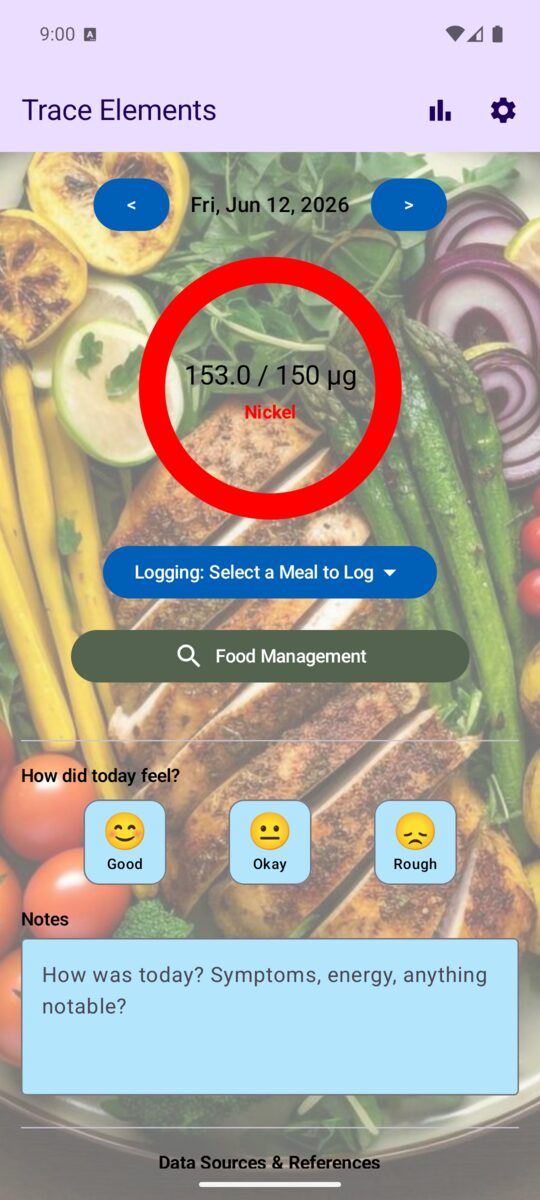
The ring fills as you log food and changes color to tell you where you stand against your limit. The thresholds are configurable in Settings.
By default the ring turns amber at the caution threshold (80% of your limit) and red at the over threshold (100%). In the example below, a single 30 g serving of cashews has pushed the day to 153 µg — just over a 150 µg nickel limit — so the ring is red.
4. Logging a meal
- Tap Logging: Select a Meal to Log and choose Breakfast, Lunch, Dinner, or Snacks.
- In the meal card that appears, type a food name into the Food field. Matching foods drop down as you type — tap one to fill in its reference value automatically.
- Enter the amount you ate and pick a unit (grams by default; common piece and portion units are also available).
- Tap the + button to add it. The food appears in the meal and both the meal total and the daily ring update instantly.
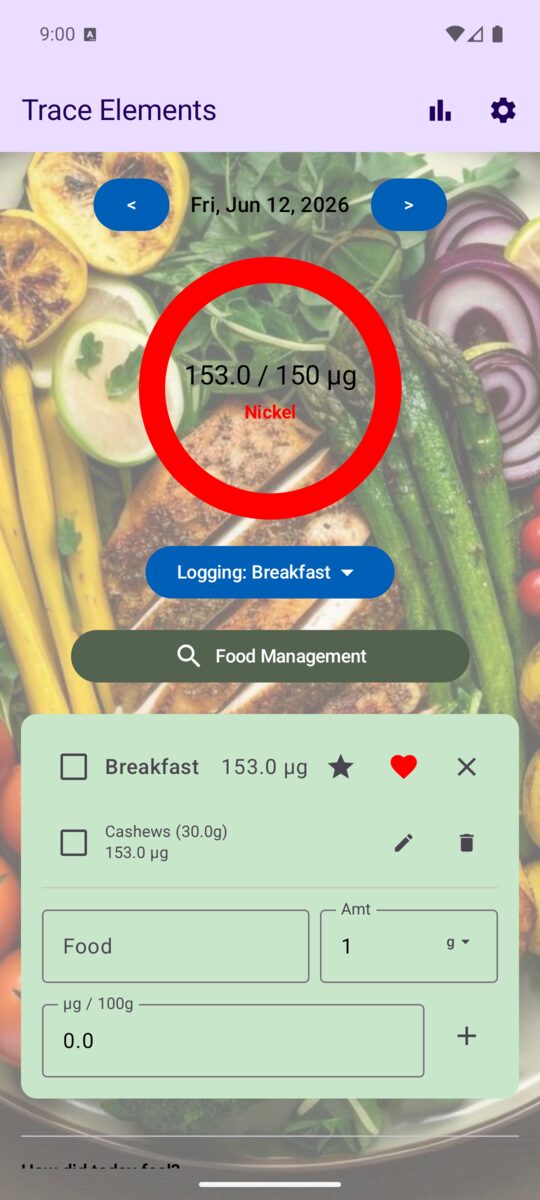
Each logged row has a pencil icon to edit the amount or value and a trash icon to remove it. When you're done with a meal, tap the ✕ in the meal header to collapse it — your entries are saved automatically.
The value the app fills in is per 100 g. You don't have to do the math — enter the real amount you ate and the app scales the contribution for you.
5. Searching the food database
To look up a food's value without logging it, open Food Management and use the Food Name field. The app searches its built-in database, the built-in compound recipes, and any recipes you've created.
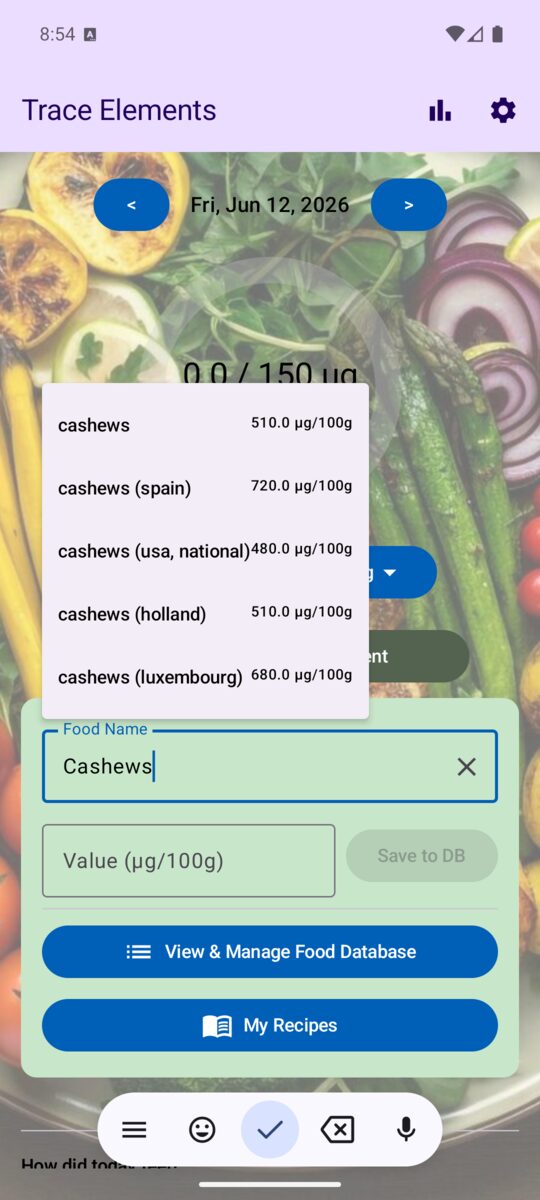
Notice that some foods have several entries — for example cashews, cashews (Spain), and cashews (USA, national). Trace-element content varies with soil, cultivar, and processing, so where a regional figure exists the app keeps it. When in doubt, the plain, unlabelled entry is the general-purpose value and sorts to the top.
To save or correct a value yourself, type the food name, enter a number in the Value (µg/100g) field, and tap Save to DB.
6. Looking up foods that aren't listed
If you search for a food that isn't in the local database, the app offers an inline look-up row. From there you can:
- Search USDA FoodData Central — a direct query to the U.S. Department of Agriculture's public food database.
- Search the web — an in-app browser lookup that can read a value from a Google AI Overview, which you then confirm before keeping.
Whatever value you accept is written into your local database with the Save to DB action, so the next time you type that food it's already there. These lookups only run when you ask for a food the app doesn't already know — see privacy.
7. Managing the food database
Open Food Management → View & Manage Food Database to see the full list. Every entry shows its name and value in µg per 100 g.
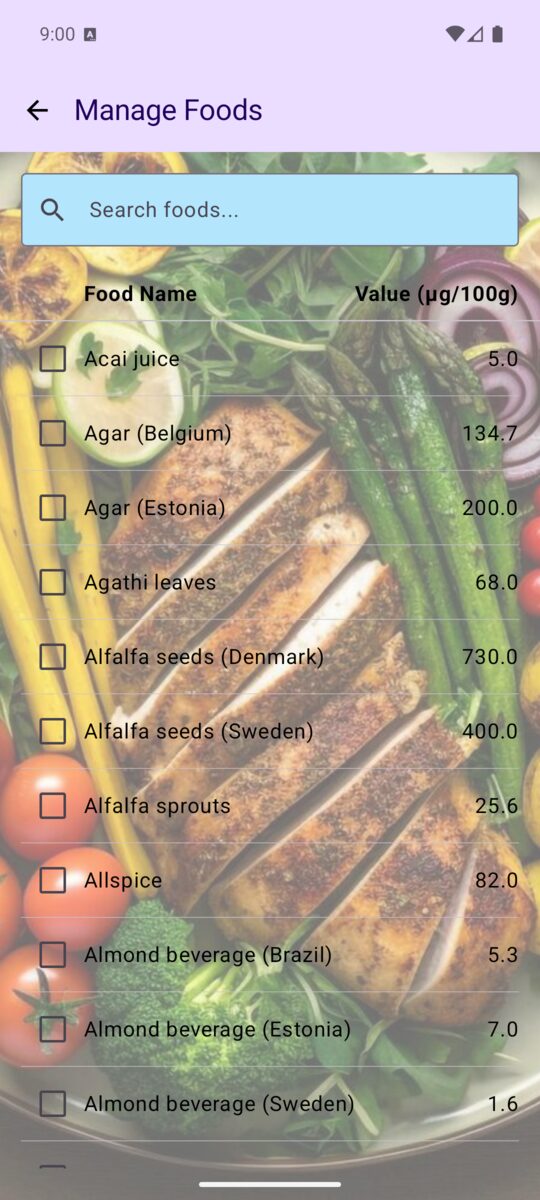
- Use the search box to filter the list as you type.
- Tick one or more checkboxes to select foods, then delete them — handy for clearing out regional variants you'll never use.
The database is keyed to the element you're tracking. Values you add or edit are stored for the current element, so switching elements gives you a clean, element-appropriate list.
8. Compound foods & custom recipes
A compound food is a dish made of several ingredients. The app ships with recipes for many common items — type something like big mac, whopper, or turkey club sandwich and it breaks the dish into its ingredients and sums their values.
You can also build your own. Open Food Management → My Recipes.
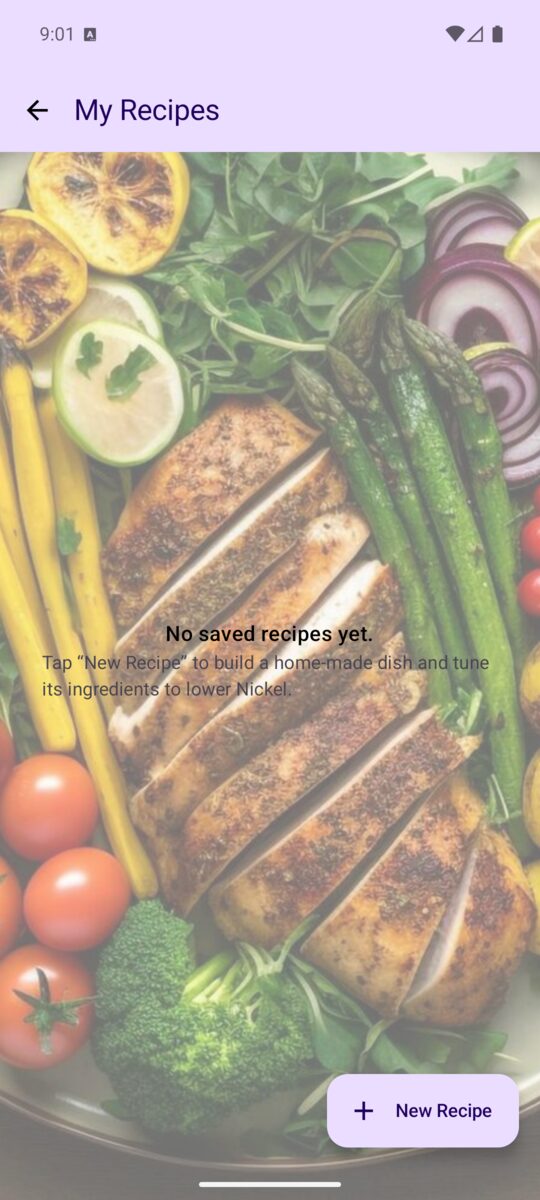
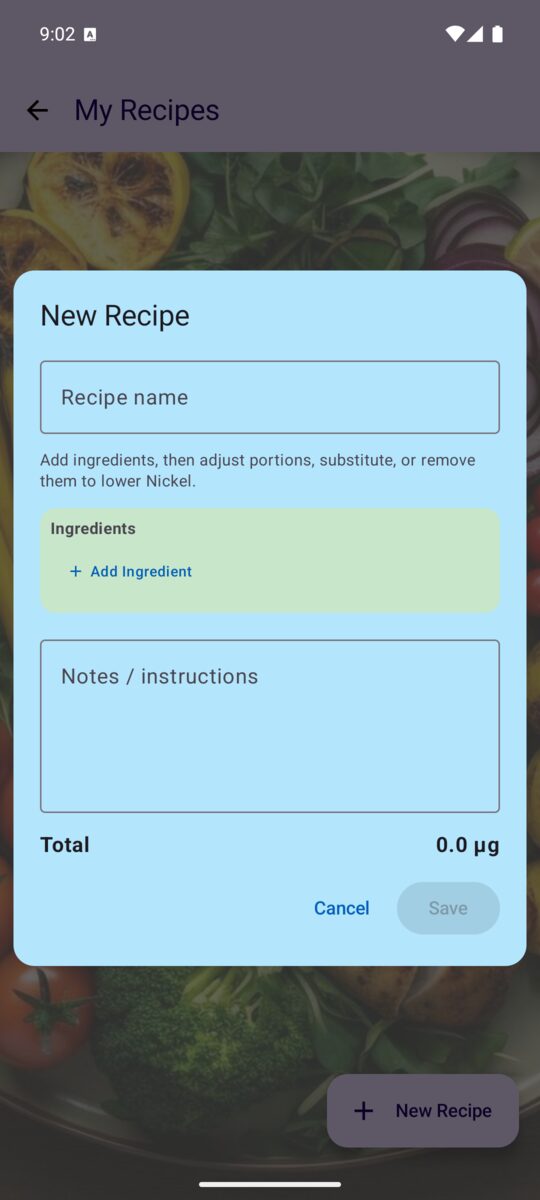
- Tap + New Recipe.
- Give the recipe a name — this becomes a searchable food you can log like any other.
- Tap Add Ingredient to build it up. Adjust portions, substitute ingredients, or remove ones you skip to lower the total.
- Add free-text notes / instructions if you like, then tap Save.
The dialog shows a running Total so you can see the trade-offs as you tweak the recipe. Saved recipes appear in autocomplete tagged as compound.
9. Favorite meals
If you eat the same combination often, save the whole meal as a favorite instead of re-adding each food. In a meal card's header:
- The ♡ heart (Save Favorite) stores the current meal as a reusable template.
- The ★ star (Recall Favorites) lets you drop a saved template back into any meal in one tap.
10. Mood & notes journal
Below the meal logger, How did today feel? lets you tag the day Good, Okay, or Rough, and the Notes box captures symptoms, energy, or anything else worth remembering. These travel with the day, so when you review your history you can line up how you felt against what you ate.
11. Trends & history
Tap the bar-chart icon in the top bar to open Trends & History. Toggle between a Week bar chart and a Month calendar, each colored by how the day landed against your limit.
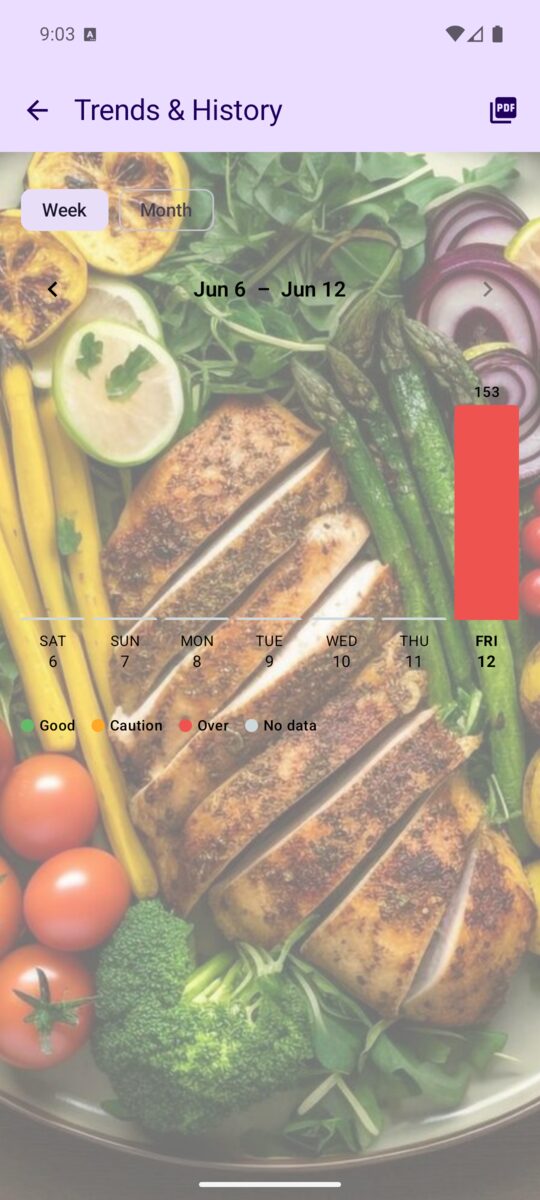
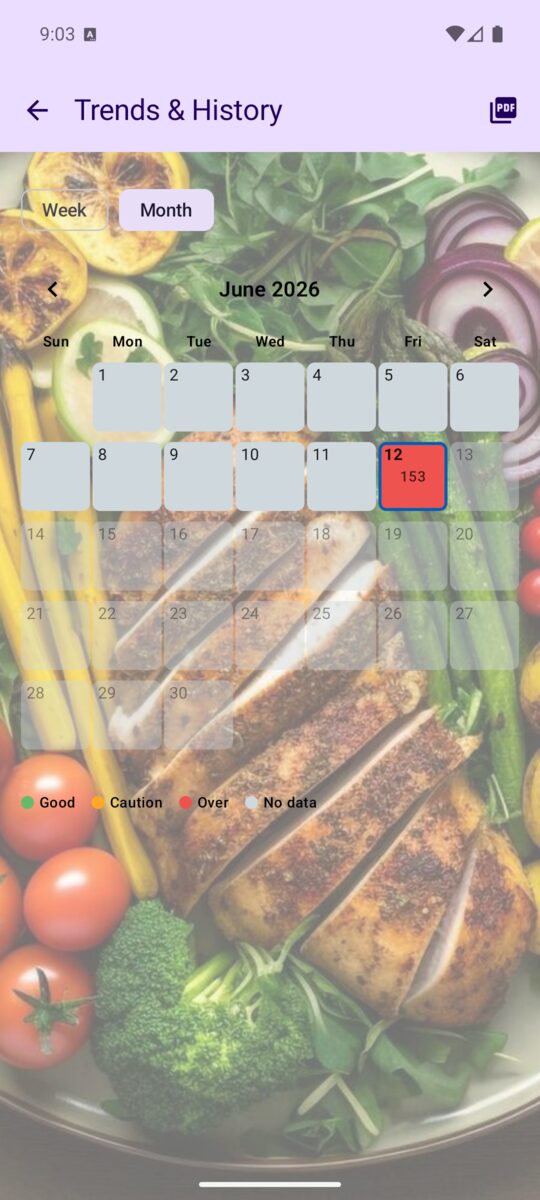
Use the arrows to move between weeks or months. The PDF icon exports a report you can save or share — useful for a clinic visit. Tap a day to fold open its journal entry alongside the chart.
12. Settings, limits & backup
The gear icon opens Tracking Settings.
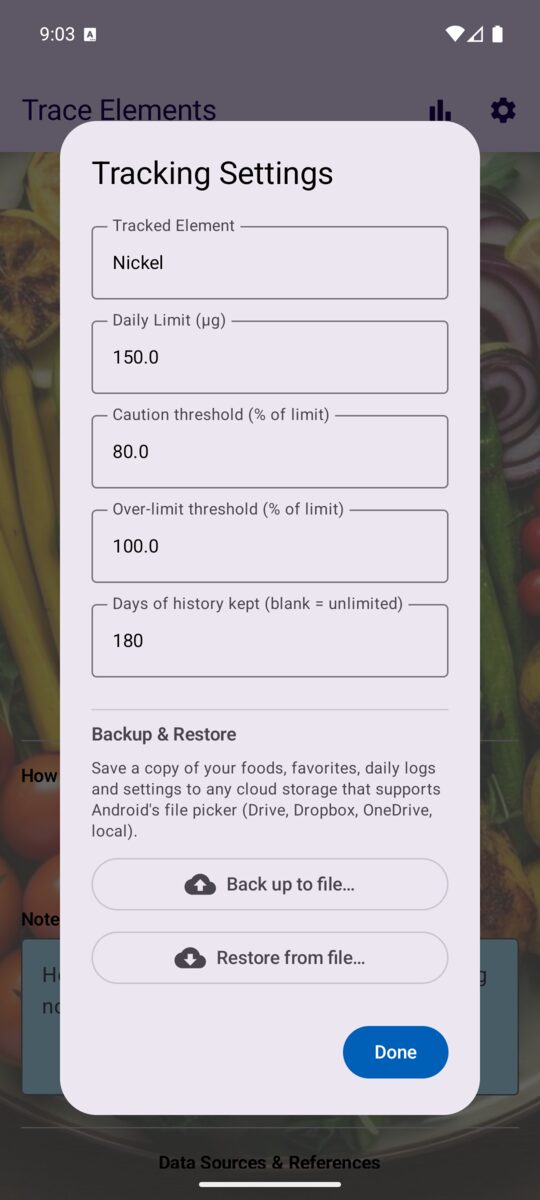
| Setting | What it does |
|---|---|
| Tracked Element | The element the whole app tracks (e.g. Nickel). Changing it swaps in that element's food values. |
| Daily Limit (µg) | Your target ceiling for the day. The ring and trends are measured against this. |
| Caution threshold (%) | Percent of the limit at which the ring turns amber (default 80%). |
| Over-limit threshold (%) | Percent of the limit at which the ring turns red (default 100%). |
| Days of history kept | How many days of logs to retain. Leave blank to keep everything. |
Backup & restore
Under Backup & Restore, Back up to file… saves a single file containing your foods,